



Detailed steps:
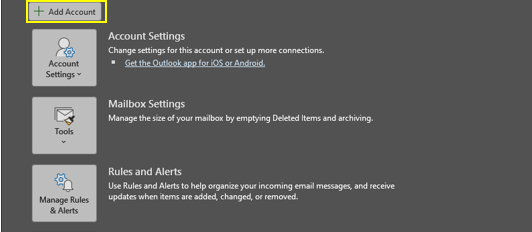
1. Open Outlook and go to "Add Account":
Open Outlook and click "File" > "Add Account".
2. Enter the email address:
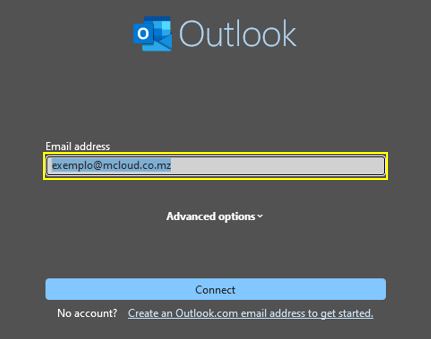
Enter the email address you want to set up and click "Connect".
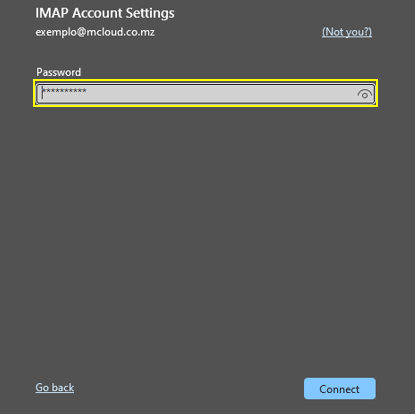
3. Automatic Configuration (if available):
Outlook will try to set up the account automatically. If successful, you can skip to step 6.
4. Advanced Configuration (if needed):
If the automatic setup fails, click "Advanced options" or "Advanced Installation" and select "Allow me to set up the account manually."
5. Server Information:
Enter the POP/IMAP and SMTP server information provided by your email provider. This information usually includes the server name, port, and encryption type.
Incoming: hosting.mcloud.co.mz
imap porta 993
pop porta 995
Outgoing: hosting.mcloud.co.mz
SMTP 465 ssl
SMTP 587 tls
6. Complete the setup:
After entering the required information, click "Next" and follow the remaining instructions to finish the setup.
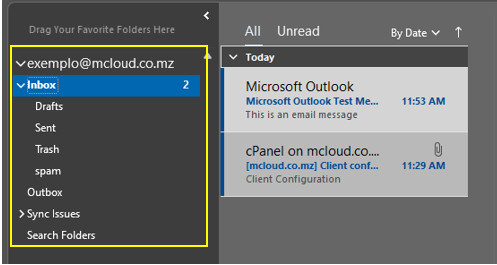
7. Finish:
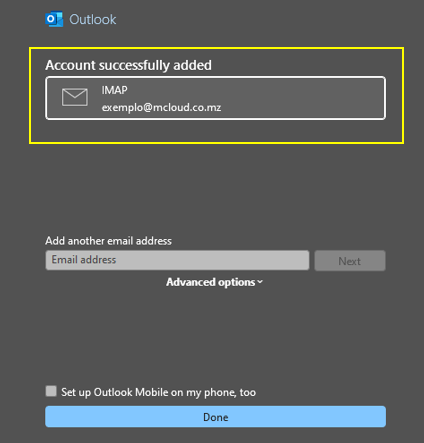
Once the setup is complete, click "Finish".
Observations:
- Safety:
It's important to make sure that your security settings, such as encryption, are in place to protect your information.
POP and IMAP are different protocols for accessing emails. POP downloads the emails to your device and can remove them from the server, while IMAP syncs the emails between the server and your device.
- Password:
Remember to use a strong and secure password to protect your account.